Adding a custom MCP server to Claude and ChatGPT

I've started exploring MCP in more detail. The web chat UIs for both Claude and ChatGPT can access MCP servers but it's not obvious how to set them up. Here's what I figured out.

I'm using my new unauthenticated MCP for my blog - https://datasette.simonwillison.net/-/mcp - which uses https://github.com/datasette/datasette-mcp to allow the executino of read-only SQL queries against a copy of my site's database.

Claude

Adding an MCP in Claude.ai is quite straight-forward. Start with the + menu next to the chat prompt and navigate through it like this:
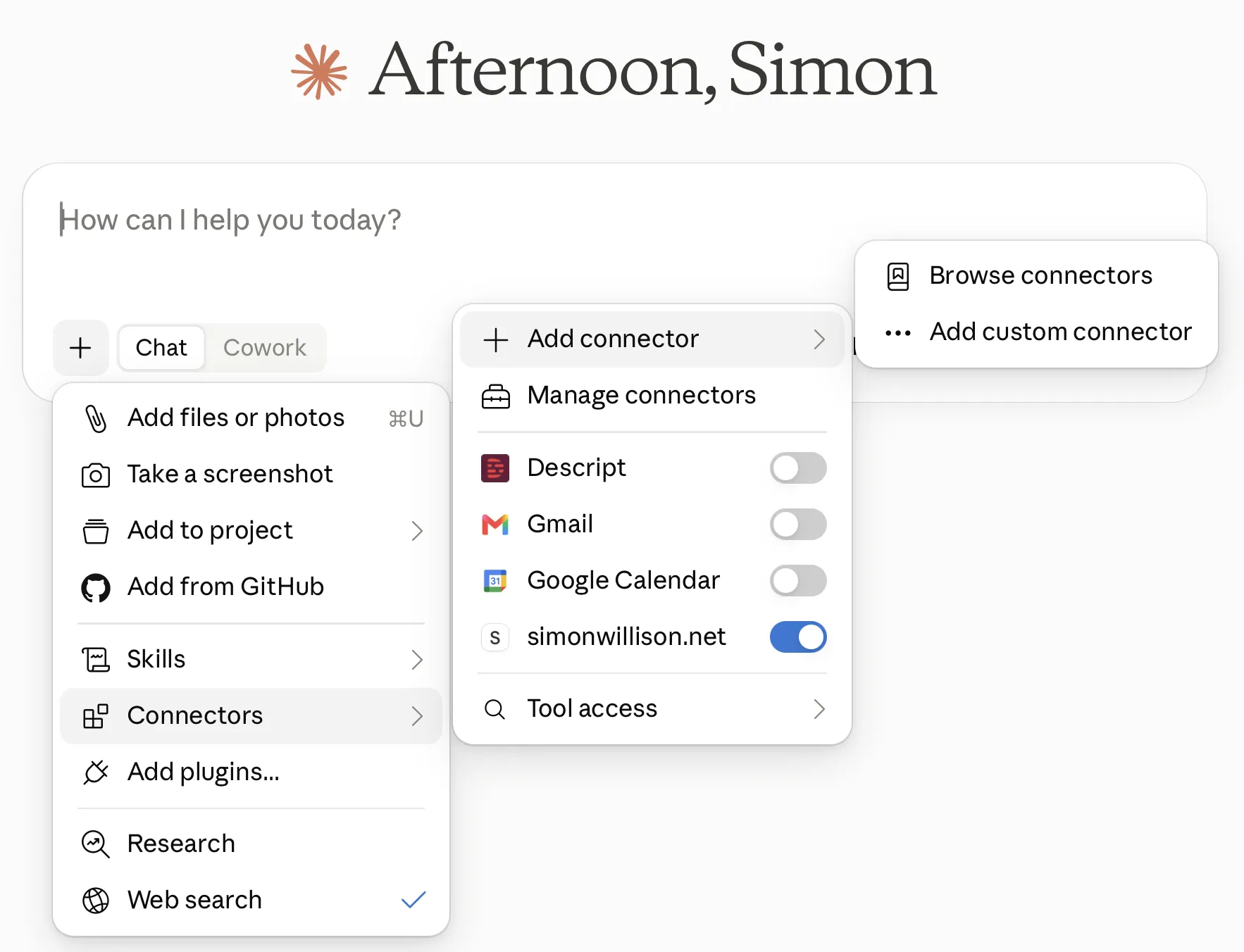
The Claude prompt box with the + menu open, showing Add files or photos, Take a screenshot, Add to project, Add from GitHub, Skills, Connectors (highlighted), Add plugins and Web search. The Connectors submenu lists Add connector, Manage connectors and toggles for Descript, Gmail, Google Calendar and simonwillison.net. The Add connector submenu offers Browse connectors and Add custom connector.

The "Add custom connector" modal then contains the necessary fields to add the MCP URL, and optionally configure authentication (I haven't tried this yet):
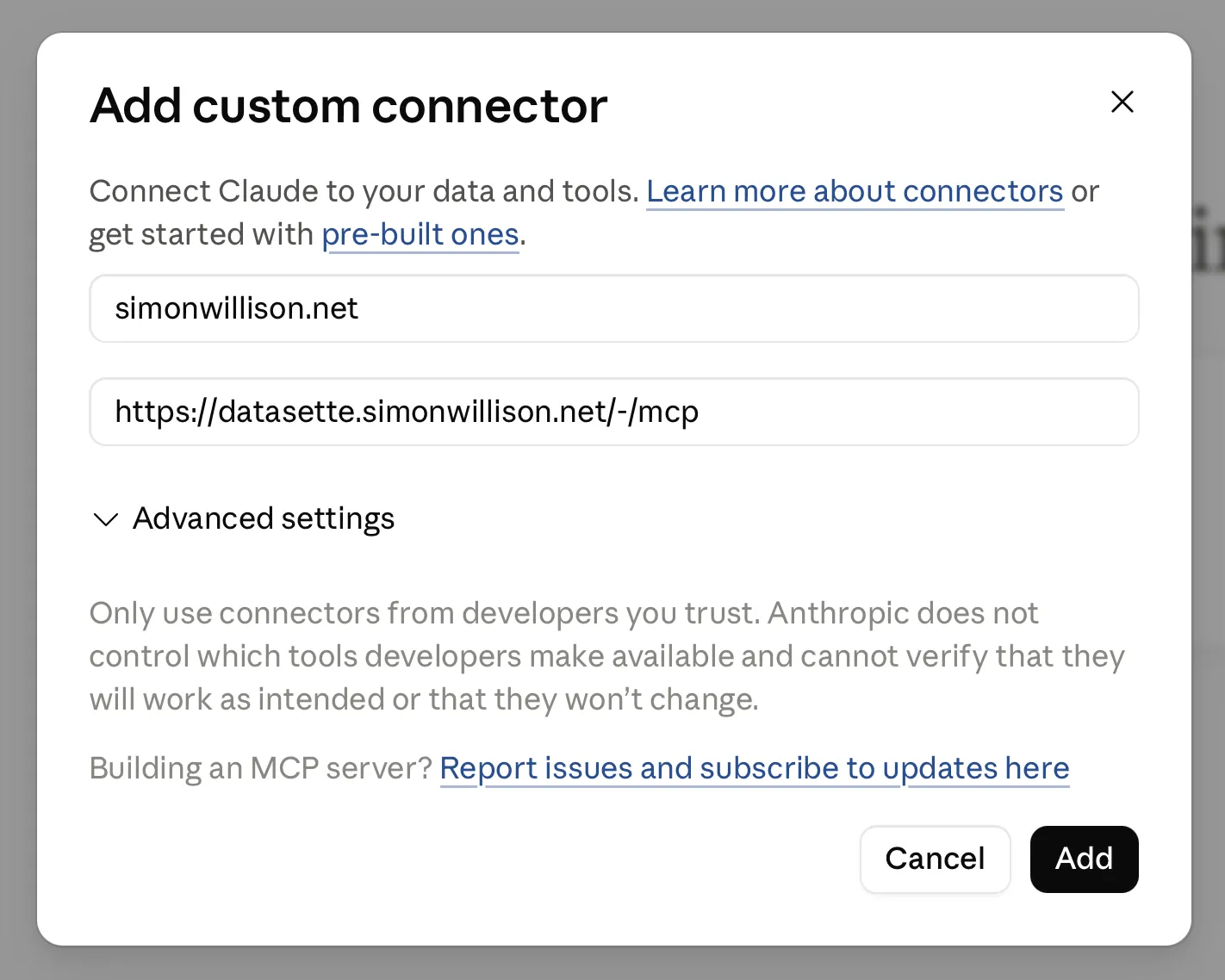
Claude's "Add custom connector" modal. The name field contains simonwillison.net and the URL field contains https://datasette.simonwillison.net/-/mcp. Below is a collapsed Advanced settings section, a warning that only connectors from trusted developers should be used, and Cancel and Add buttons.

You can then toggle the new MCP on and off in the Connectors menu, shown above.

ChatGPT

ChatGPT is a whole lot more complicated. First, you need to enable "Developer mode" for your account in the Security and login panel:
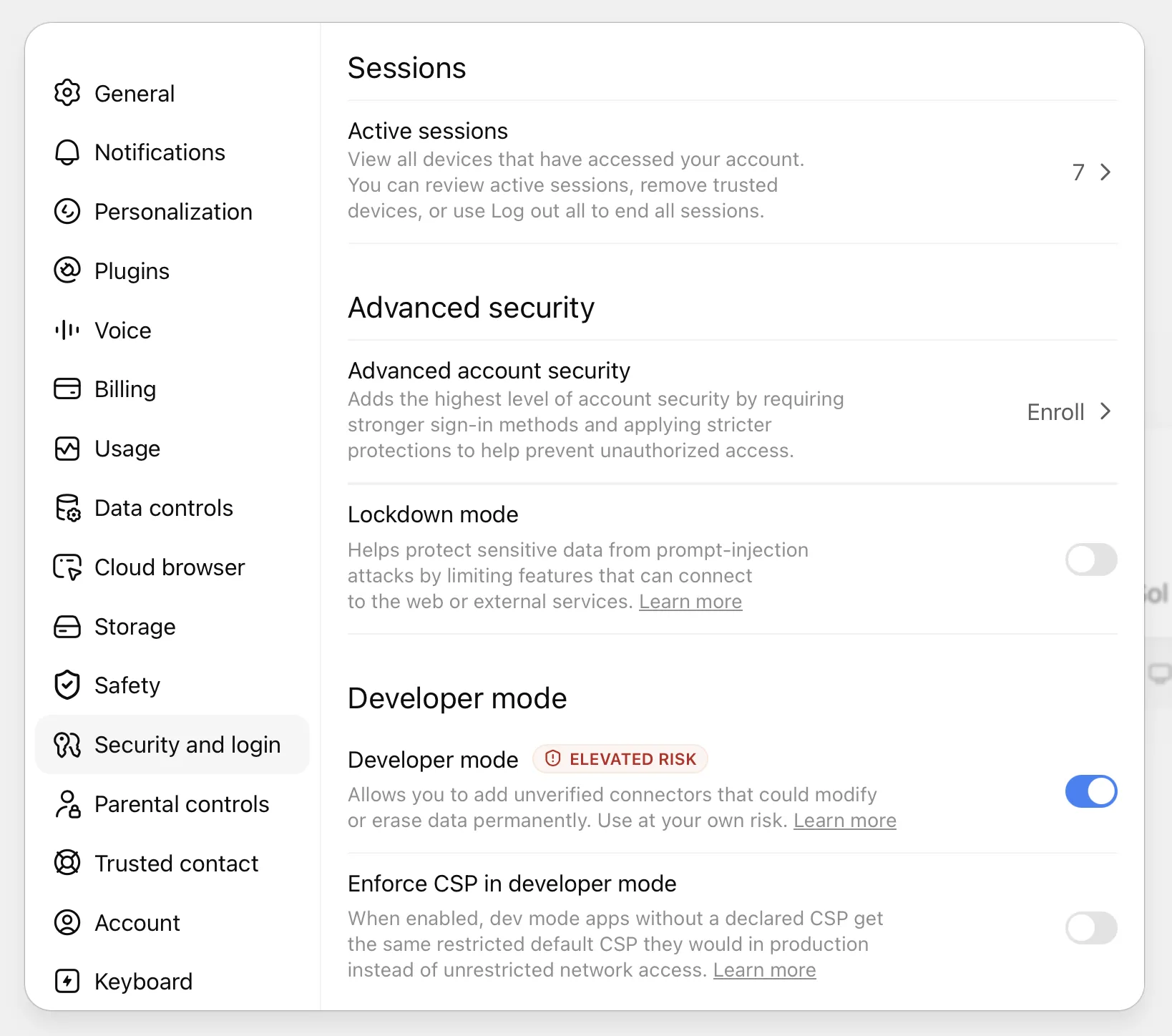
ChatGPT settings on the Security and login tab. The Developer mode section shows a Developer mode toggle marked "ELEVATED RISK" switched on, described as allowing unverified connectors that could modify or erase data permanently, plus an "Enforce CSP in developer mode" toggle that is off. Above it are Sessions and Advanced security sections including a Lockdown mode toggle.

Having done that, you can add your new MCP. The button for that is hard to find - it's the "+" icon on the top right of the ChatGPT Plugins directory page:
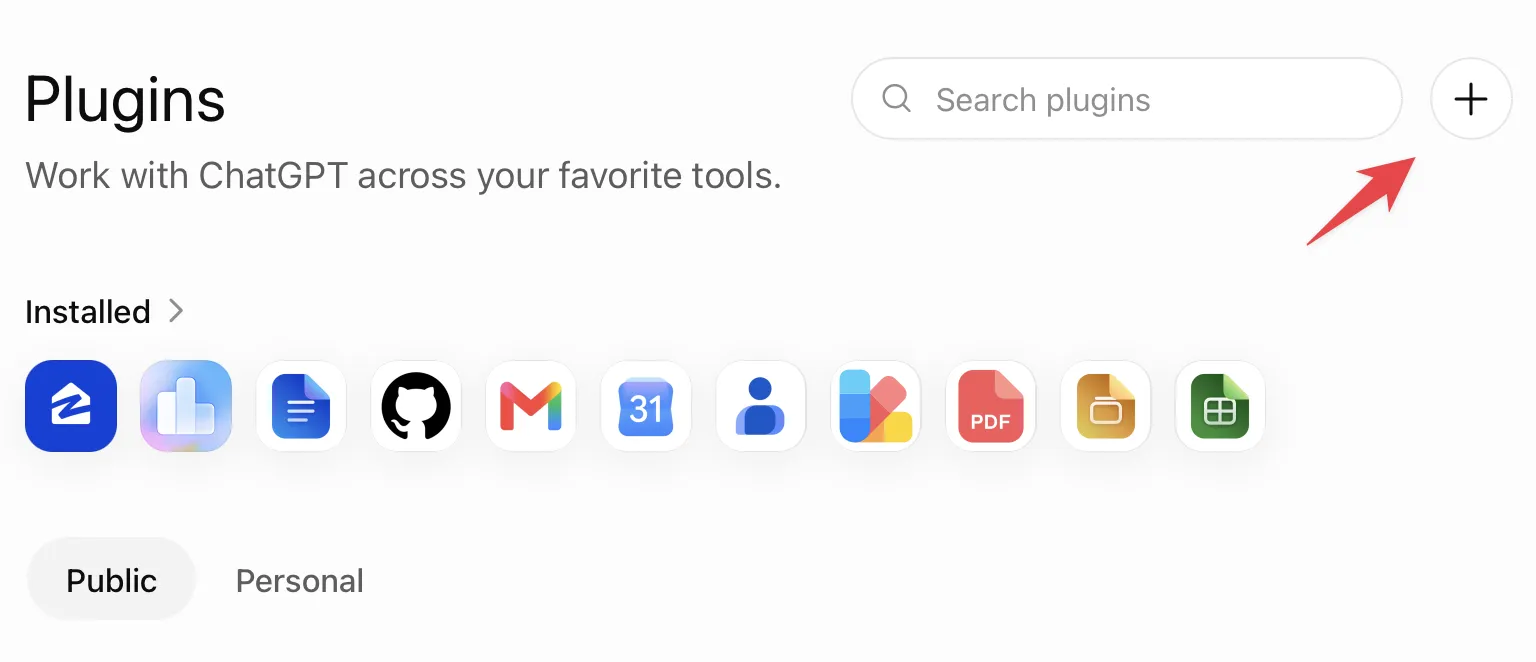
The ChatGPT Plugins page, subtitled "Work with ChatGPT across your favorite tools", with a row of installed plugin icons. A red arrow points at the + button in the top right next to the plugin search box.

This gives you the "New Plugin" modal. Apparently an MCP is a "Plugin" in the user-facing ChatGPT UI.

Be sure to set authentication to "No Auth" if the plugin does not need OAuth configured:
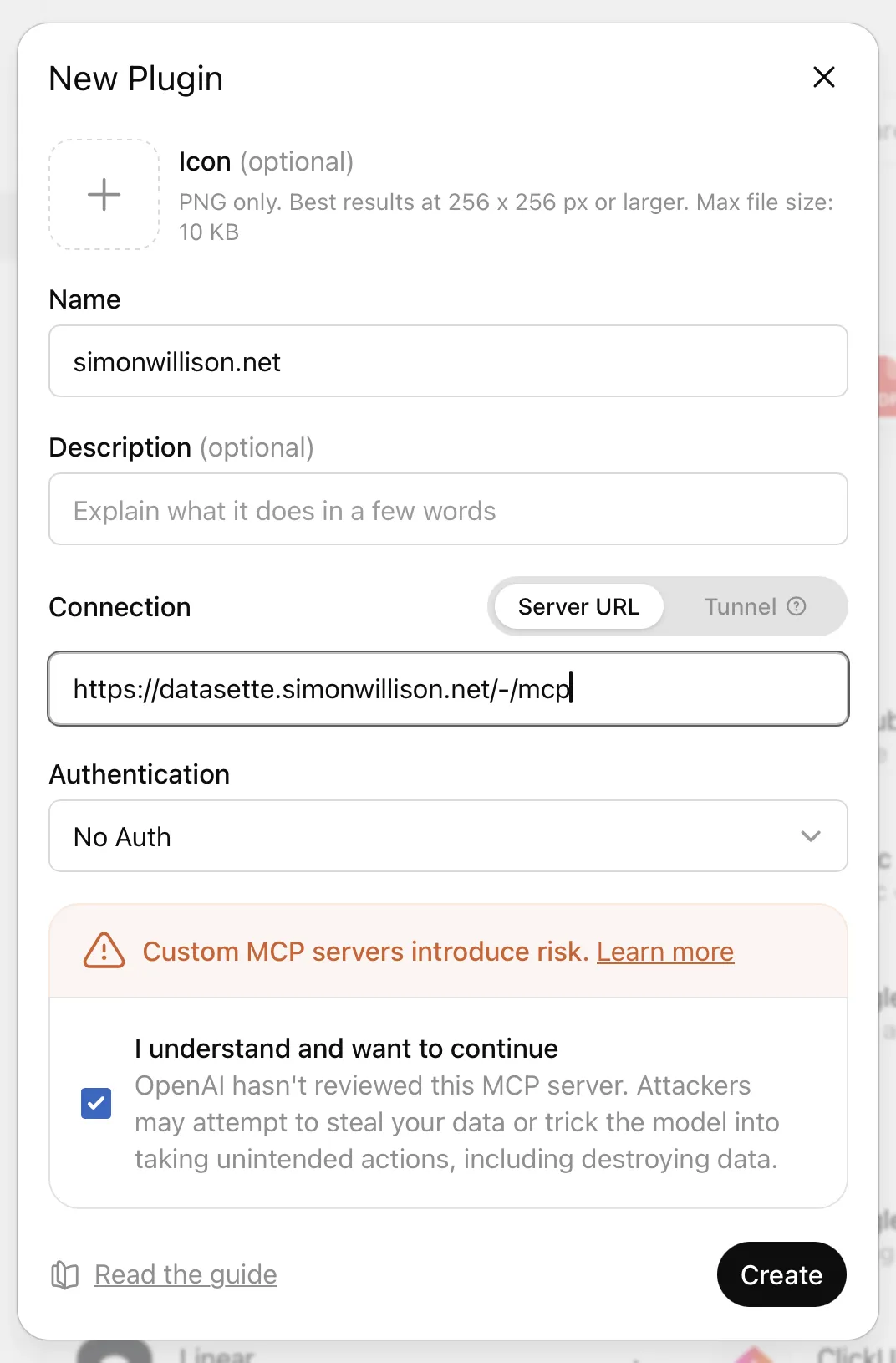
ChatGPT's "New Plugin" modal. Name is set to simonwillison.net, Description is empty, Connection is set to Server URL with https://datasette.simonwillison.net/-/mcp, and Authentication is No Auth. An orange warning says "Custom MCP servers introduce risk" and a checked box confirms "I understand and want to continue", noting OpenAI hasn't reviewed the MCP server. A Create button sits in the bottom right.

Activating the MCP is difficult as well. On web I found I had to click the + icon next to the chat and then type the name of the MCP to search for it, then select it so I could run a prompt:
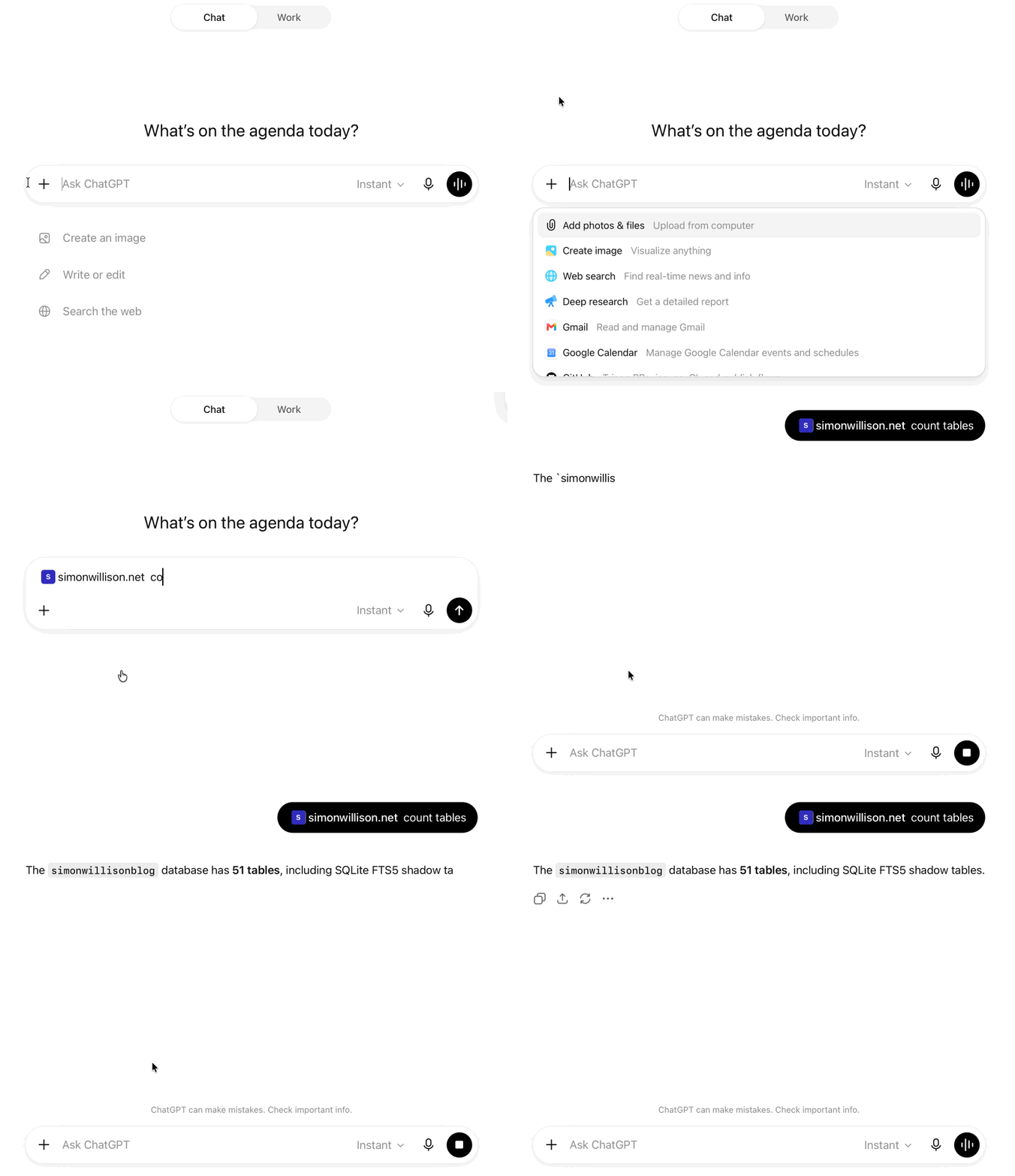
Animated demo showing clicking plus, typing simonwillison, selecting the MCP and running the prompt "count the tables"

The first time you do this it will prompt you to enable the MCP:
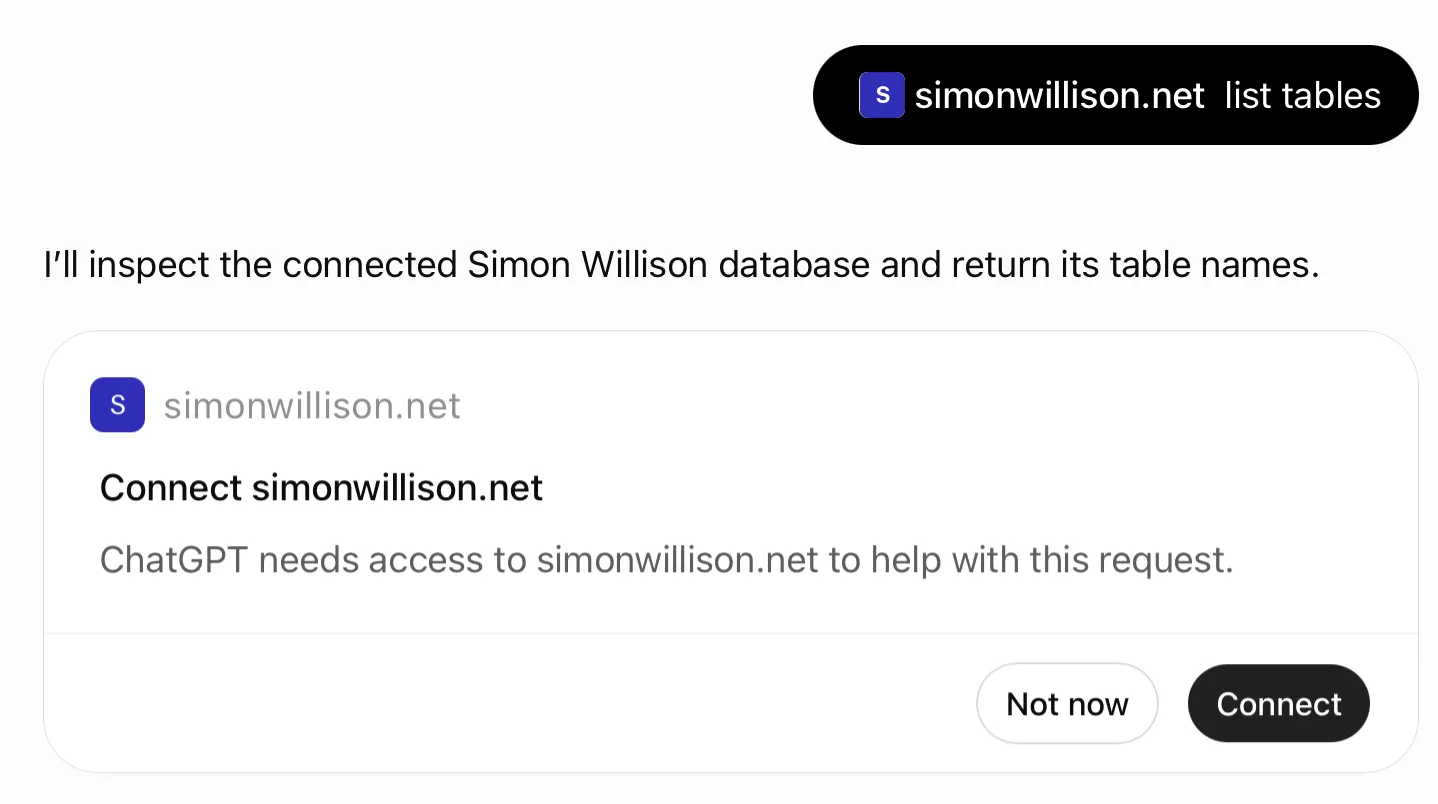
A ChatGPT conversation where the prompt "list tables" was sent to the simonwillison.net plugin. ChatGPT replies "I'll inspect the connected Simon Willison database and return its table names" and shows a card headed "Connect simonwillison.net" saying ChatGPT needs access to simonwillison.net to help with this request, with "Not now" and "Connect" buttons.

Then show you this more visually impressive splash screen:
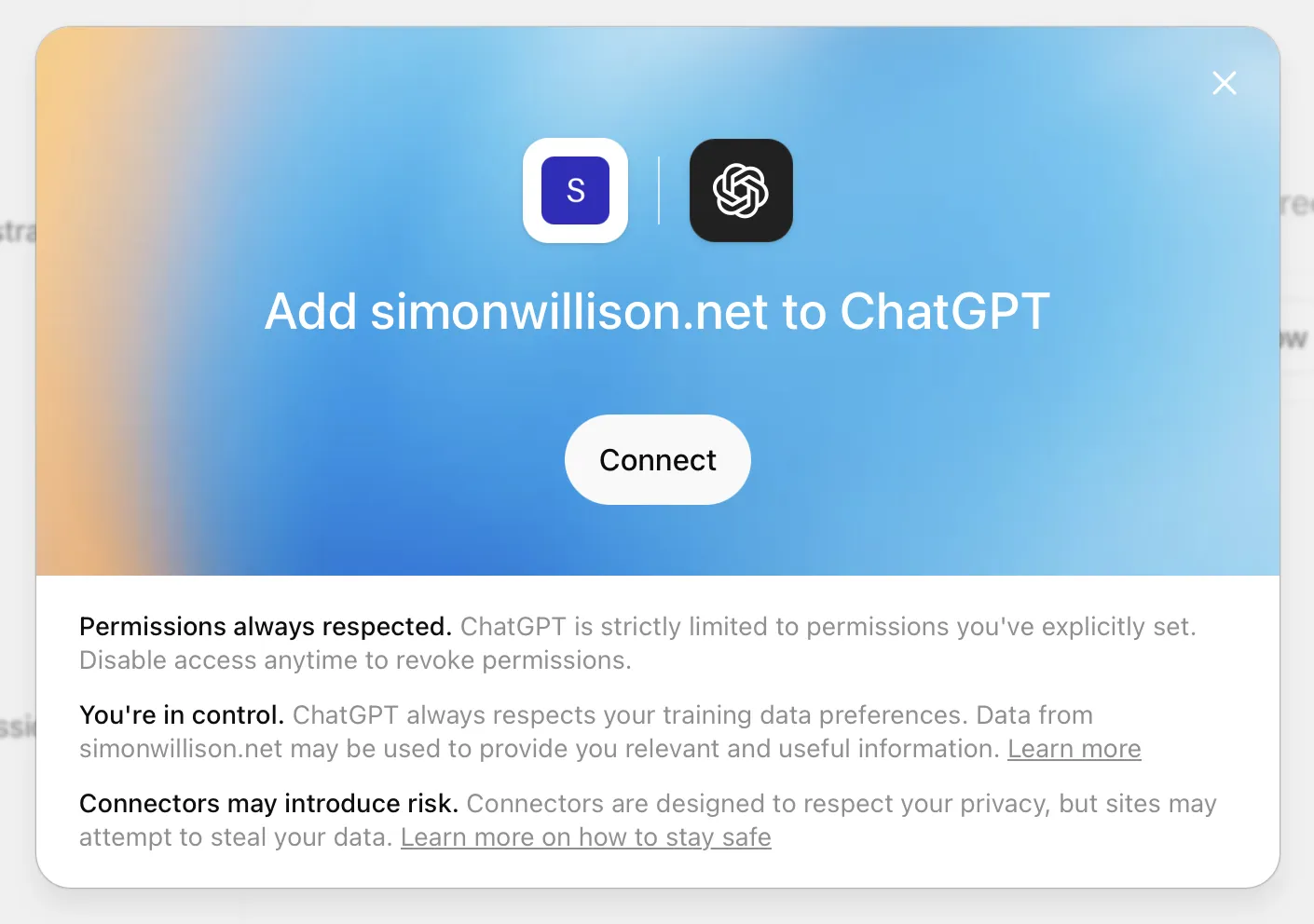
A ChatGPT modal headed "Add simonwillison.net to ChatGPT" with the site icon next to the OpenAI logo and a Connect button on a blue gradient. Below are three notes: "Permissions always respected", "You're in control" and "Connectors may introduce risk", the last warning that sites may attempt to steal your data.

After all of this... it works!

Sadly I was not able to access MCPs from ChatGPT Advanced Voice mode - I was hoping I could connect them to a regular chat and then start voice mode and drive an MCP purely through voice commands, but it looks like they are not available as tools while the voice mode conversation is running.

Created 2026-07-28T17:13:18-07:00, updated 2026-07-29T01:35:22+00:00 · History · Edit